neoHeat Dashboard
neoHeat
For homes with a Heatmiser neoHub

Your heating, on every screen in the house

neoHeat puts all your rooms on one warm, simple dashboard. See what every thermostat is doing, nudge a room up or down, set the week's programme, and spot a thermostat that has gone quiet. It runs on a computer in your home and never needs the internet.

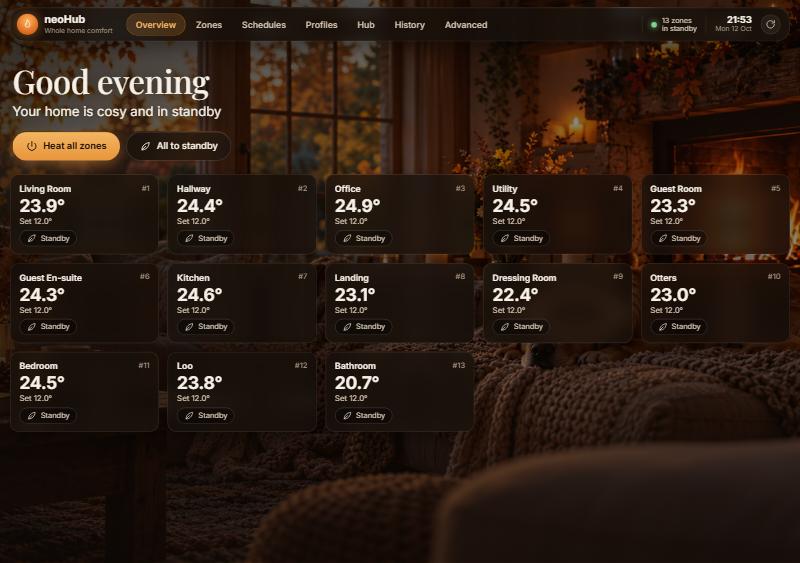
The Overview screen: a greeting, Heat all zones and All to standby buttons, and a card for each room with its temperature
Every room at a glanceOne card per room with the temperature now and the one you asked for.
Works without the internetTalks to your hub directly over home Wi-Fi. No account, no cloud, no outages.
Phone, tablet or PCOpen it in any browser at home, or add it to a phone's home screen.
Finds your hub by itselfNothing to configure. It looks for the hub when it starts and keeps an eye on it.
Why I created this

A better window on a hub that kept going quiet

While the official Heatmiser app is pretty good at a basic level, I had a number of issues with the hub dropping connection. When I'd make a change, the app would say 'your changes have been sent' but nothing would happen. This is known as 'fire and forget' and is a big sin in the software development world; you must always confirm any action has actually taken place!

The app also didn't expose enough information so I couldn't see what was actually happening. There were also some usability issues that I felt could be fixed. When I looked deeper, the NTP client (Network Time Protocol, which makes sure the time is accurate) had stopped working and the time was out of sync. Adding an enhanced front-end, I could also switch the wireless channel the hub used to communicate with the thermostats (Zigbee) to avoid interference and finally I could monitor all devices for drop-outs.

If you find this useful or have any questions, you'll find me at . This software comes with absolutely no warranty whatsoever and no claims that it will work in your environment. I worked hard to make sure it would, but I've been in IT for over 40 years so know full well there's a good chance it won't!

What you get

A tour of the dashboard

Eight screens, one for each thing you might want to do. Screenshots are from a real home with thirteen rooms, running on a PC and on a Raspberry Pi.

Overview screen with a card per room
Overview

The whole house, right now

The screen you land on. A greeting tells you the state of the house in one line, then every room has its own card.

  • Heat all zones wakes every room up to follow its programme. All to standby rests the whole house, keeping only frost protection on.
  • Each card shows the room's temperature, the target, and whether it is heating, idle or resting. Hover for quick up, down and standby buttons.
  • The dot in the corner is your health light: green when all is well, amber if the hub's clock has stopped syncing, red if a thermostat has dropped off.
Zones

One room in detail

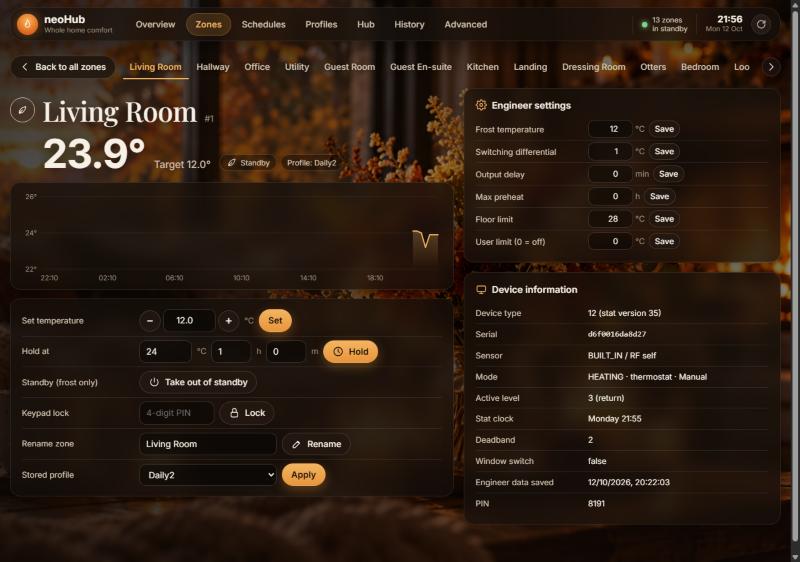
Pick a room from the strip across the top. Everything about it is on one screen.

  • Last 24 hours as a temperature line, so you can see when the room warmed up and how long it held.
  • Set a temperature, hold it for a few hours, put the room in standby, or lock the keypad so little fingers cannot change it.
  • Rename the room and choose which shared programme it follows.
  • Engineer settings for the curious: frost temperature, switching differential and the like, each with its own Save button.
Zones screen for the Living Room with a temperature chart, controls and settings
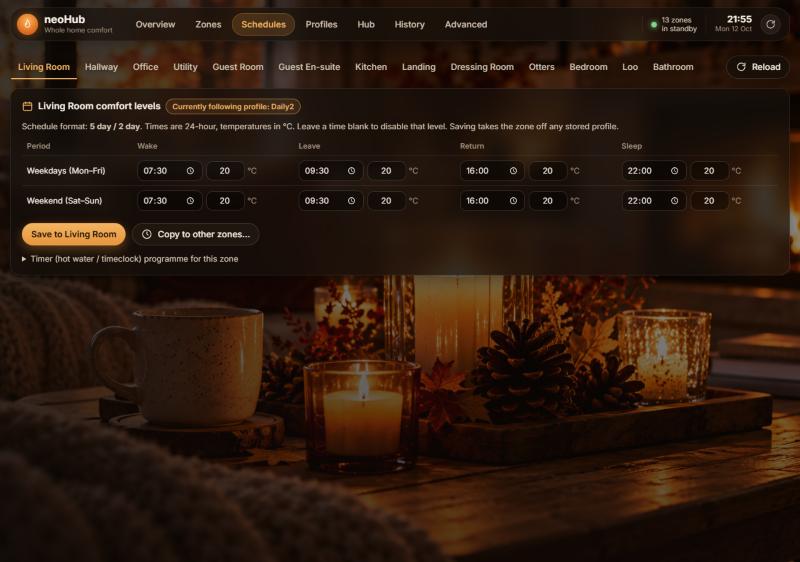
Schedules screen showing weekday and weekend times and temperatures for the Living Room
Schedules

The week's programme for a room

Four moments in the day: wake, leave, return and sleep. Set a time and a temperature for each, for weekdays and for the weekend.

  • Save sends the programme to that room's thermostat.
  • Copy to other zones gives the same programme to any other rooms you pick, so you set it once.
  • A room that follows a shared programme says so. Saving its own times takes it off that programme, and the Zones screen puts it back.
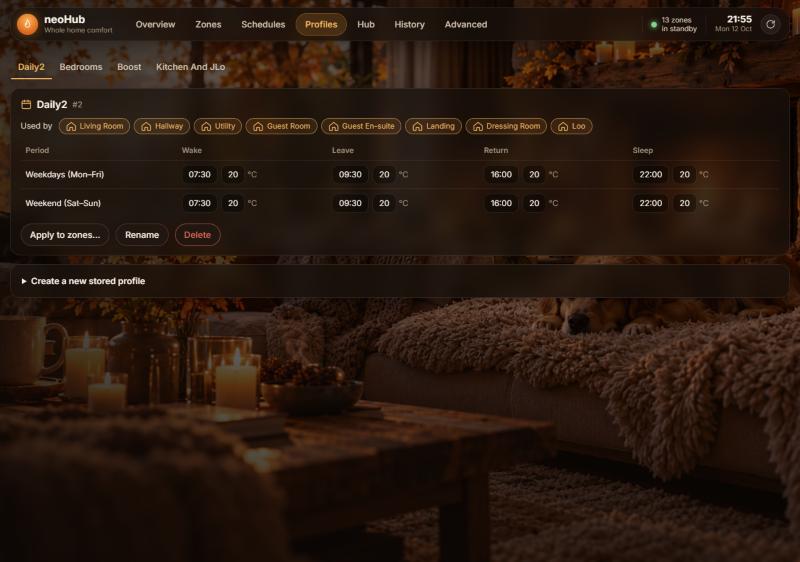
Profiles

Programmes shared by several rooms

Profiles are programmes stored on the hub that many rooms can follow, such as "Bedrooms" or "Boost". Change the profile and every room on it changes.

  • Pick a profile from the strip to see its times and temperatures.
  • Used by shows the rooms following it, so you know who is affected before you touch anything.
  • Apply to zones, Rename, Delete, or store a new one.
Profiles screen showing the Daily2 profile, the rooms that use it, and its programme
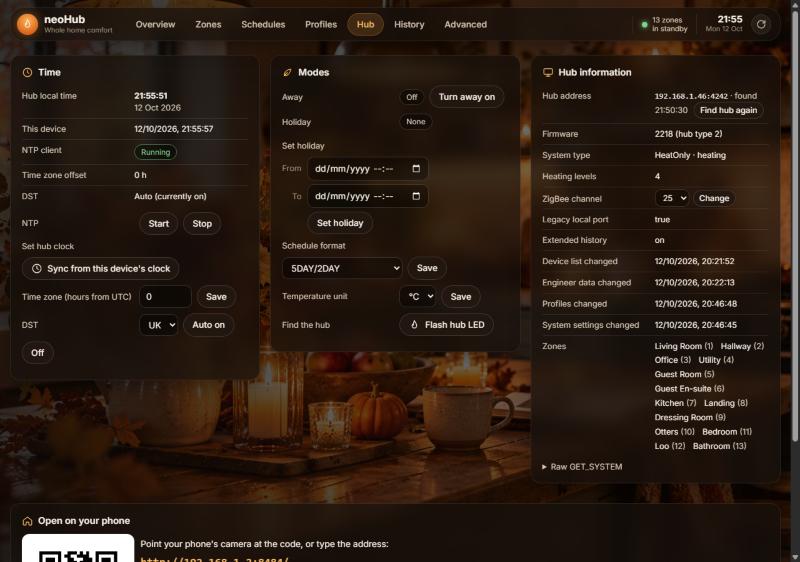
Hub screen with Time, Modes and Hub information panels and the phone QR code
Hub

Whole-house settings

The things you set once and forget, plus the switches for going away.

  • Away for a day out, Holiday with a start and end so the house looks after itself while you are gone.
  • Time: check the hub's clock, fix it with one click, and turn its automatic time sync back on if it has stopped.
  • Find the hub flashes its light so you can spot it in the cupboard.
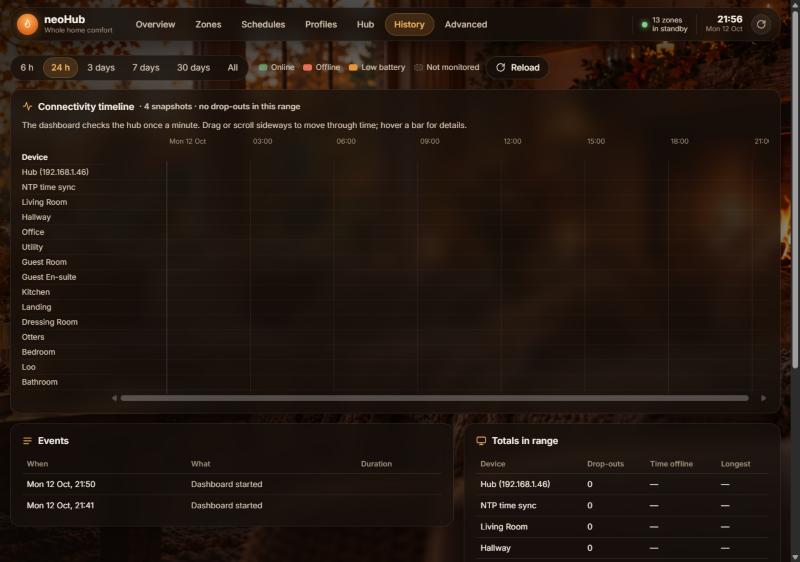
History

Which thermostat keeps dropping off

neoHeat checks on the hub and every thermostat once a minute and keeps a diary. History turns that diary into a picture.

  • One bar per device: green while it is online, red when it is not, amber on a low battery.
  • Zoom from the last six hours out to thirty days, and drag sideways to look back in time.
  • A plain list of events such as "Hallway went offline, 29 minutes", and totals per device, so you can tell a flaky thermostat from a flaky hub.
History screen with the connectivity timeline, events list and totals
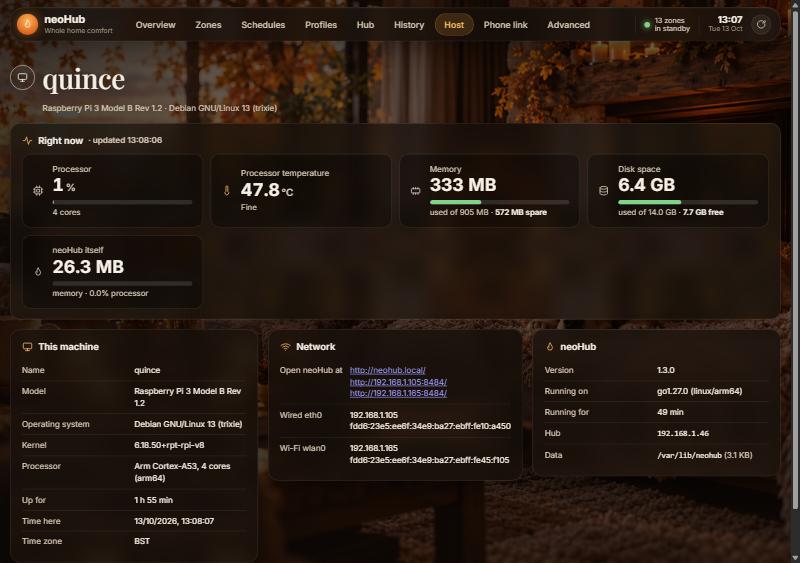
Host screen for a Raspberry Pi: processor, temperature, memory and disk gauges, machine details, network addresses and the neoHeat service
Host

The computer it runs on

A health check for the PC or Raspberry Pi that is running neoHeat, refreshed every two seconds while you watch.

  • Gauges for processor load, memory used and spare, disk space used and free, and how much neoHeat itself is using. On a Pi, the processor temperature too, with a note if it is running warm.
  • This machine: name, model, operating system, processor, how long it has been up, and its clock and time zone.
  • Network: every address the dashboard can be opened at, and each network connection with its addresses.
  • neoHeat: version, how long it has been running, the hub it is talking to, and where it keeps its data.
Phone link

Getting it onto everyone's phone

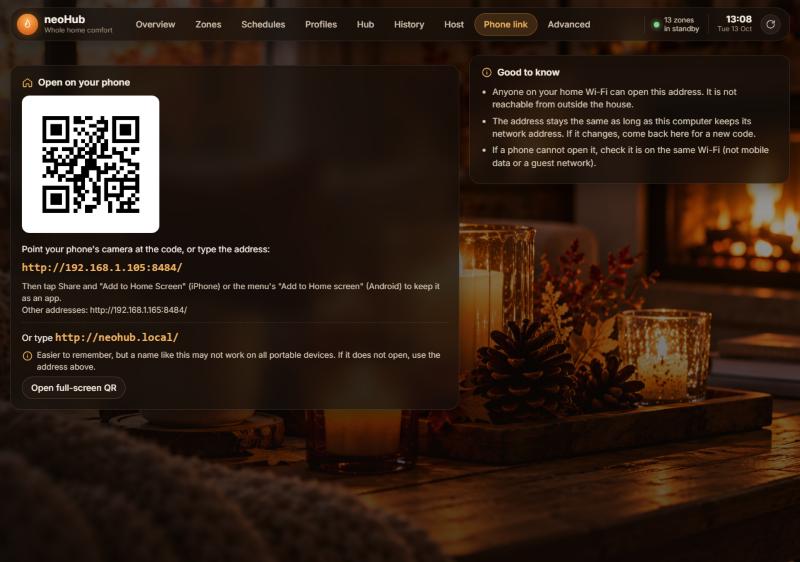
The QR code and address for the rest of the household, with the steps for adding it to a home screen.

  • Scan the code with a phone camera and the dashboard opens; then add it to the home screen so it behaves like an app.
  • neoheat.local is offered as an easier address to type on a Raspberry Pi, with a note that names like that do not work on every portable device, in which case the numeric address always does.
  • Good to know answers the usual questions: it only works on your home Wi-Fi, and what to check if a phone cannot open it.
Phone link screen with the QR code, the address, the neohub.local alternative and tips
On your phone

Scan once, then it lives on your home screen

Anyone on your home Wi-Fi can use the dashboard. The easiest way to share it is the QR code: open the Phone link tab on the dashboard, or choose Phone link from the tray icon's menu on Windows.

iPhone or iPad

  1. Open the Camera and point it at the QR code, then tap the link that pops up.
  2. In Safari tap Share, then Add to Home Screen.
  3. Tap the new flame icon. It opens full screen, like an app.

Android

  1. Scan the code with the Camera or Google Lens and open the link in Chrome.
  2. Open Chrome's menu and choose Add to Home screen or Install app.
  3. Tap the icon on your home screen whenever you want it.
Download

Version 1.3.1

Pick the file for the computer that will run neoHeat. It only needs to run on one machine in the house; everyone else uses it from a browser.

Windows 10 or 11

neoHeat-Setup-1.3.1.exe

18.9 MB · installer

Download

SHA-256 8dcc791e…0dc6fc

Raspberry Pi (and possibly other Linux platforms), 64-bit OS

neoheat_1.3.1_arm64.deb

18.5 MB · Pi 3, 4, 5 and Zero 2 W

Download

SHA-256 6d5391fa…545b55

Raspberry Pi (and possibly other Linux platforms), 32-bit OS

neoheat_1.3.1_armhf.deb

18.8 MB · 32-bit Raspberry Pi OS · built but not yet tested

Download

SHA-256 79801ad1…c98b87

Get it for Windows

A small tray app on a PC that stays on

neoHeat runs quietly in the system tray, next to the clock. It uses almost no memory and starts with Windows, so the dashboard is always there.

Installing

  1. Download neoHeat-Setup-1.3.1.exe and run it.
  2. Windows may show an "unrecognised app" warning because the installer is not signed. Choose More info, then Run anyway.
  3. Leave Start neoHeat when you sign in and Allow phones and tablets on your home network ticked, and finish.
  4. The dashboard opens in your browser. The flame icon is now in the tray.

Afterwards

  • Right-click the tray icon for Open dashboard, Phone link, Find hub again, Start with Windows and Quit.
  • Updating is just running the new installer. Your history is kept.
  • Removing it is the usual Apps and features route.
Get it for Raspberry Pi (and possibly other Linux platforms)

Or a Raspberry Pi tucked away next to the router

A Pi makes a good home for neoHeat because it is always on and uses almost no power. Any Pi 3, 4, 5 or Zero 2 W running the 64-bit version of Raspberry Pi OS will do; that is the version that has been tested. The same package may well work on other Debian-based Linux systems with a 64-bit ARM processor, and a 32-bit build is offered for older setups, but neither of those has been tried.

Installing

  1. Open a terminal window on the Pi and fetch the package into your home folder:
    cd ~
    wget https://neoheat.bs40.com/downloads/neoheat_1.3.1_arm64.deb
    (On a 32-bit system use neoheat_1.3.1_armhf.deb instead, but see the note above.)
  2. Install it from your home folder. You will be asked for your password:
    sudo apt install -y ~/neoheat_1.3.1_arm64.deb
  3. That is it. neoHeat starts straight away and every time the Pi boots. Open http://neoheat.local/ from any device at home. The Pi announces that name itself, so no address to remember.

Afterwards

  • Phones: in a terminal window, run neohub phone to draw the QR code, or open the Phone link tab on the dashboard. The dashboard is also at http://neoheat.local/, which is easier to remember but may not work on all portable devices.
  • Checking on it: in a terminal window, run neohub status to see the hub it found and the dashboard address.
  • Updating: in a terminal window, run the same two commands with the new file.
  • Removing: in a terminal window, run sudo apt remove neohub.
Good to know

Questions people ask

Does it need the internet?

No. It talks to the hub over your home Wi-Fi, so it keeps working if your broadband goes down. The Heatmiser app keeps working too; both can be used side by side.

What does "standby" mean?

The room stops following its programme and only comes on if it gets very cold, around 12 °C, to protect the pipes. "Heat all zones" or the room's own button wakes it up again.

Can other people in the house use it?

Yes, anyone on your Wi-Fi. There is no login, so it stays on the home network and is not reachable from outside.

Why is a room showing a flat line or gaps in its chart?

Thermostats keep one reading every 15 minutes for the last day. After a thermostat re-joins the hub the chart refills over the next 24 hours.

Why did my new profile end up with the same times every day?

A quirk of the hub: when a new profile is stored it copies the weekend row over the weekday row. The form warns you. Rooms' own schedules are not affected.

Something on the Hub screen says the time sync stopped. Is that bad?

It means the hub's clock may drift and programmes slowly run late. One click on Start fixes it, and the History screen shows how often it happens.